Food Hygiene
 Health & Safety
 Safeguarding
 First Aid
 Business Skills
 Personal Development

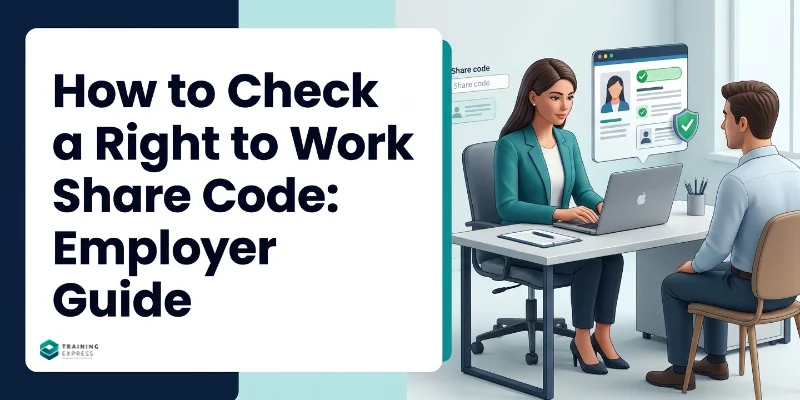

To check a right to work share code, ask the person for their share code and date of birth. Enter both on the GOV.UK “view a job applicant’s right to work details” service. Check the photo on screen matches the person, note any work limits, save the profile page and record the date. The whole check usually takes a few minutes.
Share code checks are now the main way to check anyone with an eVisa, including EU citizens with settled or pre-settled status. If you get the steps right before the person starts work, you have a legal defence if their status turns out to be wrong. This guide walks you through each step and what to do when a code doesn’t work.
Key takeaways
- A right to work share code is a nine-character code starting with the letter W. It remains valid for 90 days.
- You need the person's share code and date of birth to complete the online check, which is free.
- If someone has an eVisa, you must use the online right to work check. Physical documents alone are not sufficient.
- British and Irish citizens cannot get share codes, so you must use a manual document check or a digital identity check.
- Save the online profile page as a PDF or HTML file and record the date you completed the check.
What Is a Right to Work Share Code?
A right to work share code is a one-off code that lets an employer view a person’s immigration status online. The person creates it from their UK Visas and Immigration (UKVI) account and gives it to you. You can’t create a share code for them.

Right to work share codes have nine characters and begin with the letter W. Each code is valid for 90 calendar days from when it was created, and you can use it more than once in that time.
Share codes are also used for other purposes, such as renting a home. Codes for those services usually start with R or S, and the Home Office employer’s guide says you can’t accept them for a right to work check. If someone gives you one, ask them to create a right to work code instead.
The share code is just a key to the record. What gives you protection is checking the Home Office record properly and keeping evidence that you did.
Who Should Give You a Share Code?
Anyone whose immigration status is held digitally as an eVisa must prove their right to work online. That includes:
- EU, EEA and Swiss citizens with settled or pre-settled status under the EU Settlement Scheme
- people on work, study or family visas whose status is held as an eVisa
- people who used to hold a Biometric Residence Permit (BRP), which has been replaced by an eVisa
British and Irish citizens can’t get a share code. For them, check a List A document, such as a British passport, or use a digital check through a registered provider. Our guide to right to work documents lists what you can accept.
What You Need Before You Start
- The person’s right to work share code (starting with W)
- The person’s date of birth
- The person present in the room or on a live video call, so you can match their face to the photo
- Details of the job, including the hours, so you can check they’re allowed to do it
Do the check before the person’s first day, including any trial shift. You can do it earlier, such as before a job offer, as long as you check every candidate at the same stage in the same way.
How to Check a Right to Work Share Code: Step by Step
- Go to the official service. Type GOV.UK into your browser and find “View a job applicant’s right to work details”, or go straight to gov.uk/view-right-to-work. Don’t use links from adverts or emails.
- Enter the share code. Type the nine characters exactly as given, without spaces. Watch for letters and numbers that look alike, such as O and 0.
- Enter the date of birth. Use the date of birth the person gave you. If it doesn’t match their record, the check won’t work.
- Enter your company name. The service asks for your organisation’s name, which appears on the profile.
- Check the photo. Compare the photo on screen with the person in front of you, in person or on a live video call. If it isn’t them, stop the check.
- Check the permissions. Read whether they can work without restriction or only for a limited time, and note any limits on hours or type of work.
- Save the profile and record the date. Download or print the profile page and keep it securely. Note the date of the check.
Tip: If the person’s permission is time-limited, add the expiry date to your HR system before you close the check. Set reminders three months and one month ahead.
Example: A warehouse hires Marta, an EU citizen with pre-settled status. Before her first shift, the manager asks for her share code and date of birth. On a short video call, the manager enters both on GOV.UK and checks that the photo matches Marta. The profile shows she can work with no limit on hours, but her permission is time-limited. The manager saves the profile as a PDF, records the date and sets a reminder to check again before her permission ends.
What Does the Online Check Show?
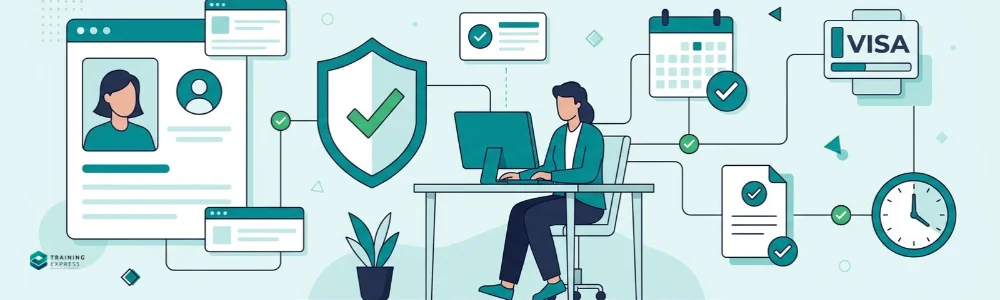
The profile page shows the details you need to confirm the person can do the job:
- the person’s name and photograph
- whether they can work in the UK, and whether that permission has a time limit
- the date their permission ends, if there is one
- any conditions, such as a limit on weekly hours for students or a restriction to work for a particular sponsor
Read the conditions carefully. A Student visa holder, for example, can usually work only up to 20 hours a week in term time, or 10 hours if they study below degree level. If the job needs more hours than they’re allowed, you can’t offer those hours.
What Should You Save After the Check?
To keep your statutory excuse, you need proof that you did the check correctly. Save:
- the profile page, as a PDF or HTML file, or a printed copy
- the date you made the check
- any notes on work limits you agreed with the person, such as capped hours
Don’t rely on a screenshot the person sends you. It must be the profile you viewed yourself on the GOV.UK service.
Keep the record for as long as the person works for you, plus two years after they leave. It is personal data, so UK GDPR applies. Store it securely and limit who can access it. Our guide to the General Data Protection Regulation (GDPR) explains the basics.
When Do You Need to Check Again?
If the profile shows the person has time-limited permission, your statutory excuse ends when that permission ends. You must do a follow-up check before then to stay protected.
For a follow-up check, ask the person for a new share code and repeat the steps. If they have applied to extend their permission before it ran out, the online check may confirm the pending application and give you a six-month statutory excuse. If it can’t, use the Employer Checking Service.
People with settled status or indefinite leave don’t need follow-up checks. Their profile will show their permission has no time limit.
Share Code Problems and How to Fix Them
Most share code problems are easy to fix if you leave enough time before the start date.
| Problem | Likely cause | What to do |
|---|---|---|
| "Share code not recognised" | Typo, or the code has expired after 90 days | Re-enter it carefully. If it still fails, ask the person for a new code. |
| Code starts with R or S | The person made a code for renting or another purpose | Ask them to create a right to work code, which starts with W. |
| Date of birth doesn't match | Wrong date entered, or an error in the person's UKVI record | Confirm the date with the person. If their record is wrong, they must ask UKVI to correct it. |
| Photo doesn't look like the person | Wrong code, or someone else's record | Stop the check. Don't let them start work until you can confirm their identity. |
| The person can't get a share code | Problems with their UKVI account | Ask them to contact UKVI. If it's a technical issue, you can use the Employer Checking Service. |
| The service won't load or shows an error | A technical fault on the GOV.UK service | Try again later or on another browser. If it keeps failing, use the Employer Checking Service. |
| Status shows a pending application | The person has applied to extend their permission | Follow what the profile says. If it doesn't confirm the right to work, ask the Employer Checking Service. |
Never let someone start work on trust while a problem is being fixed. If you can’t complete a valid check, delay the start date. Our guide to the Employer Checking Service explains when and how to use it.
Can You Check a Share Code Remotely?
Yes. The share code check is fully online, so you can do it for remote or hybrid staff. You still need to match the person’s face to the photo on the profile. A live video call works for this, but a photo or recorded video doesn’t.
Share Code Check vs Manual Check vs Digital Check
| Share code (online) check | Manual document check | Digital check (RtW DVSP) | |
|---|---|---|---|
| Who it's for | Anyone with an eVisa | British and Irish citizens, and people with acceptable List A or B documents | British and Irish citizens with a passport or Irish passport card |
| What you need | Share code and date of birth | Original documents | A registered provider's app or website |
| Cost | Free | Free | Provider's fee |
| What you keep | Profile page (PDF or HTML) | Dated copies of each document | The provider's result |
You can’t insist on one method if the person can prove their right to work another valid way. But if they have an eVisa, the online check is the only valid method.
Common Share Code Mistakes
- Accepting a screenshot. You must view the profile yourself on GOV.UK.
- Skipping the photo match. Without it, you don’t know the record belongs to the person.
- Accepting a physical document from an eVisa holder. Only the online check counts for them.
- Ignoring work limits. Check the hours and type of work against the job.
- Not saving the profile. If you can’t show the record and the date, you can’t prove the check.
- Missing the follow-up. Time-limited permission needs a new check before it ends.
Learn More About Right to Work Compliance
Share code checks are one of three ways to check right to work. For the full process, including the October 2026 changes and penalties of up to £60,000 per worker, see our guide to right to work checks. To train your hiring team, Training Express’s UK Employment Law course covers employers’ legal duties, and the HR Management course covers recruitment and onboarding.
Right to Work Checks FAQs
How long is a right to work share code valid?
A right to work share code is valid for 90 calendar days from when the person creates it. You can use it more than once in that time. After 90 days, ask the person for a new code.
Can an employer generate a share code?
No. Only the person can create a share code, from their UKVI account on GOV.UK. They then give you the code and their date of birth.
Does a share code check cost anything?
No. The Home Office online checking service is free for employers. Only digital checks through a registered provider for British and Irish citizens usually carry a fee.
Can I accept a right to rent share code?
No. Codes for renting or other services usually start with R or S and can’t be used for a right to work check. Ask the person for a code that starts with W.
What if the person's status shows time-limited permission?
You can employ them, but your protection ends when their permission ends. Record the expiry date and do a follow-up check, with a new share code, before that date.
Can British citizens use a share code?
No. British and Irish citizens can’t get a share code. Check their passport or another List A document, or use a registered digital provider.

Robert Lawrence
Author | Specialises in E-Learning.
Robert Lawrence is an author at Training Express, with over 5 years of experience creating practical resources and strategies to support learners and enhance their professional & personal development.
Reviewed by: Aftab Ansari, Human Resource Specialist at Training Express