Food Hygiene
 Health & Safety
 Safeguarding
 First Aid
 Business Skills
 Personal Development


The way people work, learn, and collaborate has changed significantly, with cloud technology making it easier to access files, communicate with others, and stay productive from virtually anywhere. As these needs have evolved, Microsoft has expanded its traditional Office software into a connected platform that supports modern productivity across home, education, and business environments.
Whether you’re choosing software for personal use, studying, managing a small business, or supporting a large organisation, understanding what Microsoft 365 offers can help you make a more informed decision. With a range of subscription plans, integrated applications, cloud services, and intelligent tools, it has become one of the most widely used productivity solutions in the world.
This guide explains what Microsoft 365 is, how it works, what’s included in different plans, and how it compares with other productivity platforms. You’ll also learn about its key features, AI-powered capabilities, security benefits, and practical advantages to help determine whether Microsoft 365 is the right solution for your needs.
Table of Contents
Microsoft 365 at a Glance
The table below provides a quick overview of Microsoft 365, including its core features, supported users, subscription options, and the benefits that have made it one of the world’s most widely used productivity platforms.
| Feature | Overview |
|---|---|
| What is Microsoft 365? | A subscription-based productivity platform that combines Microsoft Office applications, cloud services, collaboration tools, security features, and AI-powered capabilities. |
| Best for | Home users, families, students, professionals, small businesses, and large organisations looking for a connected productivity solution. |
| Popular Apps | Word, Excel, PowerPoint, Outlook, Teams, OneNote, and other Microsoft applications, depending on the subscription plan. |
| Cloud Storage | OneDrive enables secure file storage, synchronisation, backup, and file sharing across multiple devices. |
| Key Features | Real-time collaboration, automatic updates, cross-device access, integrated security, and AI-powered productivity tools. |
| Available Plans | Personal, Family, Business, and Enterprise subscriptions tailored to different user and organisational requirements. |
What Is Microsoft 365?
Microsoft 365 is a subscription-based productivity platform developed by Microsoft that combines familiar Office applications with cloud services, collaboration tools, security features, and AI-powered capabilities. It provides users with ongoing access to applications such as Word, Excel, PowerPoint, Outlook, and Teams, together with cloud storage and regular feature updates.

Unlike traditional Microsoft Office editions purchased through a one-time licence, Microsoft 365 follows a subscription model. This allows users to receive continuous software improvements, enhanced security, and access to the latest features without buying a new version every few years.
Microsoft 365 is designed to support modern ways of working by bringing together desktop, web, and mobile experiences within a connected ecosystem. As the platform continues to evolve, it offers far more than a collection of Office applications, helping users create, communicate, collaborate, and work more efficiently from virtually anywhere.
The Evolution of Microsoft 365
Microsoft’s productivity platform has evolved alongside the way people work and collaborate. What began as standalone desktop software has grown into a cloud-connected ecosystem that supports real-time collaboration, cross-device access, and intelligent productivity tools.
The timeline below highlights the key milestones in Microsoft’s transition from traditional Office software to today’s Microsoft 365 platform.
| Year | Milestone |
|---|---|
| Pre-2011 | Microsoft Office was sold as a one-time software purchase installed on individual computers. |
| 2011 | Microsoft launched Office 365, introducing a subscription model with cloud storage, regular updates, and multi-device access. |
| 2020 | Consumer Office 365 plans were rebranded as Microsoft 365 to reflect a broader platform beyond Office applications. |
| Today | Microsoft 365 continues to expand with AI-powered capabilities, enhanced collaboration tools, cloud services, and ongoing feature updates. |
Originally, Microsoft Office was designed as a collection of desktop applications, including Word, Excel, PowerPoint, and Outlook. Users purchased a perpetual licence and typically upgraded only when a new version was released.
The introduction of Office 365 marked a significant shift towards subscription-based software. Instead of purchasing new editions, subscribers received continuous updates, cloud storage through OneDrive, and the flexibility to access their applications across multiple devices.
As Microsoft’s services expanded beyond traditional Office applications, the company renamed Office 365 to Microsoft 365 in 2020 for consumer plans. The new name reflected a broader ecosystem that combines productivity apps, cloud services, collaboration tools, security features, and AI-powered capabilities within a single subscription.
This evolution laid the foundation for the modern Microsoft 365 experience. In the next section, we’ll explore how Microsoft 365 works and how its subscription model connects applications, cloud services, and devices into one integrated platform.
How Does Microsoft 365 Work?
Microsoft 365 works through a cloud-based subscription model that gives users access to productivity applications, online services, and collaboration tools under a single Microsoft account. Once you subscribe, you can use your apps and services across multiple compatible devices while keeping your files and settings synchronised.

1. Sign in with Your Microsoft Account
After purchasing a Microsoft 365 subscription, you sign in using your Microsoft account. This account manages your subscription, installed applications, cloud storage, and access across supported devices.
2. Access Apps and Cloud Services
Depending on your subscription, you can install Microsoft 365 applications on your devices or use web-based versions through your browser. Files saved to OneDrive are automatically synchronised, allowing you to continue working from almost anywhere.
3. Collaborate and Stay Updated
Microsoft 365 enables users to share files, work on documents simultaneously, and communicate using integrated services such as Microsoft Teams. Subscribers also receive automatic feature updates, security improvements, and performance enhancements without purchasing a new software version.
How Microsoft 365 Works in Simple Steps
- Purchase a Microsoft 365 subscription.
- Sign in with your Microsoft account.
- Install or access Microsoft 365 apps.
- Store and synchronise files with OneDrive.
- Collaborate, work across devices, and receive automatic updates.
What's Included in Microsoft 365?
Microsoft 365 includes much more than the familiar Office applications. Depending on your subscription plan, it combines productivity software, cloud storage, communication tools, security features, and intelligent services to create a connected digital workspace. The overview below summarises the main components before we explore each category in more detail.
| Category | What's Included |
|---|---|
| Productivity Apps | Word, Excel, PowerPoint, Outlook, OneNote, Access* and Publisher* (Windows only) |
| Collaboration & Communication | Teams, SharePoint*, Planner*, Forms, To Do |
| Cloud Storage & Services | OneDrive, Office for the web, file synchronisation |
| AI & Security | Microsoft Copilot* (supported plans), automatic updates, built-in security features |
| Device Support | Windows, macOS, iOS, Android, and web browsers |
*Availability varies depending on your Microsoft 365 subscription plan.
Productivity Applications
Microsoft 365 includes the core Office apps used for creating documents, analysing data, managing emails, and taking notes, including:
- Microsoft Word
- Microsoft Excel
- Microsoft PowerPoint
- Microsoft Outlook
- Microsoft OneNote
Some plans also include applications such as Microsoft Access and Publisher (Windows only).
Collaboration and Communication Tools
Microsoft 365 makes teamwork easier by integrating communication and collaboration services, including:
- Microsoft Teams for meetings, messaging, and video calls.
- SharePoint for document management and team collaboration (business plans).
- Microsoft Forms for creating surveys and quizzes.
- Microsoft Planner and Microsoft To Do for organising tasks and projects (selected plans).
Cloud Storage and Online Services
Every Microsoft 365 subscription includes cloud services that allow users to work across devices and keep files synchronised.
Key services include:
- OneDrive for secure cloud storage, file backup, and sharing.
- Office for the web, allowing users to access Word, Excel, and PowerPoint through a web browser.
- Automatic file synchronisation across compatible devices.
AI, Security and Additional Features
Many Microsoft 365 plans also provide advanced capabilities, such as:
- Microsoft Copilot integration in supported subscriptions.
- Built-in security and privacy features.
- Automatic software updates.
- Cross-device access across Windows, macOS, iOS, Android, and web browsers.
Note: The applications, services, and features available may vary depending on whether you choose a Personal, Family, Business, or Enterprise Microsoft 365 plan.
How the Microsoft 365 Ecosystem Works
Unlike traditional office software, Microsoft 365 is built as an integrated ecosystem where applications, cloud services, and communication tools work together. Instead of using separate programs for different tasks, users can move seamlessly between Microsoft services while keeping files, conversations, and projects connected.
How Microsoft 365 Applications Connect
The example below shows how a typical workflow moves across different Microsoft 365 services.
| Task | Microsoft 365 Service | Outcome |
|---|---|---|
| Create a report | Microsoft Word | Draft and edit documents |
| Save the file | OneDrive | Automatic cloud backup and synchronisation |
| Share with colleagues | Microsoft Teams | Secure collaboration and file sharing |
| Collect feedback | Word + Teams | Real-time comments and co-authoring |
| Schedule a meeting | Outlook | Discuss updates and next steps |
Why Integration Matters
Instead of switching between unrelated software, Microsoft 365 keeps your documents, calendars, meetings, emails, and cloud storage connected through a single Microsoft account. This improves productivity, reduces duplicate work, and helps ensure everyone is working from the latest version of a file.
Benefits of an Integrated Ecosystem
- Work across desktop, web, and mobile devices.
- Access files from virtually anywhere with an internet connection.
- Collaborate on shared documents in real time.
- Keep emails, calendars, meetings, and files connected.
- Reduce the need for multiple third-party productivity tools.
Key Point: The real value of Microsoft 365 isn’t just the individual applications—it’s how they work together to create a connected and efficient digital workspace.
Key Features of Microsoft 365
Microsoft 365 combines familiar productivity applications with cloud technology to deliver features that improve the way people create, collaborate, and manage their work. While available features vary by subscription, the platform offers several core capabilities that benefit most users.
| Feature | What It Enables |
|---|---|
| Real-time collaboration | Multiple users can edit and comment on the same document simultaneously. |
| Cloud storage | Save, synchronise, and access files securely through OneDrive. |
| Cross-device access | Continue working across Windows, macOS, smartphones, tablets, and web browsers. |
| Automatic updates | Receive the latest features, security improvements, and bug fixes without manual upgrades. |
| Built-in security | Protect accounts, files, and organisational data with integrated security features. |
| AI-powered assistance | Use Microsoft Copilot and intelligent tools to help draft content, analyse information, and improve productivity (supported plans). |
Together, these features create a connected productivity environment rather than a collection of standalone tools. Whether you’re collaborating on shared documents, accessing files remotely, or using AI to streamline routine tasks, Microsoft 365 helps improve flexibility, efficiency, and teamwork across different devices and locations.
Note: Some advanced AI, security, and administrative capabilities are only available with selected Business and Enterprise plans.
Common Uses of Microsoft 365
Microsoft 365 supports a wide range of users by combining productivity applications, cloud services, and collaboration tools into a single platform. Whether you’re managing personal tasks, studying, or working as part of a team, it offers solutions that help simplify everyday activities and improve productivity.
| User Group | Common Uses |
|---|---|
| Individuals & Families | Managing personal documents, budgets, calendars, photos, and cloud storage. |
| Students & Educators | Creating assignments, collaborating on projects, taking notes, and supporting online learning. |
| Professionals | Managing emails, creating reports, analysing data, scheduling meetings, and collaborating with colleagues. |
| Businesses & Organisations | Team collaboration, document management, secure communication, project coordination, and hybrid working. |
Individuals and Families
Microsoft 365 helps individuals and families organise everyday life by creating documents, managing household budgets, storing important files in OneDrive, sharing calendars, and accessing information across multiple devices.
Students and Educators
Students can prepare assignments, collaborate on group projects, and access learning materials from anywhere, while educators can create teaching resources, share course content, and support both classroom and remote learning.
Professionals
Professionals use Microsoft 365 to manage emails, prepare reports, analyse spreadsheets, deliver presentations, organise meetings, and collaborate efficiently with colleagues, clients, and stakeholders.
Businesses and Organisations
Businesses rely on Microsoft 365 to improve teamwork, centralise document management, support secure communication, and enable employees to work effectively across office, remote, and hybrid environments.
Microsoft Copilot: AI in Microsoft 365
Microsoft Copilot is Microsoft’s AI-powered assistant that helps users complete everyday tasks more efficiently within Microsoft 365 applications. By combining large language models with Microsoft Graph data and supported Microsoft 365 apps, Copilot can assist with writing, analysing information, summarising content, and automating routine work.

What Can Microsoft Copilot Do?
Depending on your Microsoft 365 subscription and application, Copilot can help you:
- Draft and rewrite documents in Word.
- Analyse data, identify trends, and generate formulas in Excel.
- Create presentations from prompts in PowerPoint.
- Summarise emails and draft replies in Outlook.
- Generate meeting summaries and action points in Microsoft Teams.
Why Copilot Matters
Rather than replacing existing Microsoft 365 applications, Copilot enhances them by reducing repetitive tasks and helping users complete their work more efficiently. It can improve productivity, support decision-making, and free up more time for higher-value activities.
| Application | Example Copilot Capability |
|---|---|
| Word | Draft, rewrite, and summarise documents. |
| Excel | Analyse datasets, generate formulas, and identify trends. |
| PowerPoint | Create presentations from prompts or existing documents. |
| Outlook | Summarise email threads and draft responses. |
| Microsoft Teams | Summarise meetings and highlight key action items. |
Note: Microsoft Copilot availability varies by Microsoft 365 subscription and licensing. Some AI features require additional Copilot licences or are only available with selected Personal, Business, or Enterprise plans.
Microsoft 365 Plans Explained
While Microsoft Copilot demonstrates how Microsoft 365 continues to evolve with AI-powered capabilities, the features and services available to you ultimately depend on your subscription. Microsoft offers several plans tailored to individuals, families, businesses, and large organisations, with each providing different applications, cloud storage, collaboration features, security tools, and administrative capabilities.
The table below provides a simplified comparison of the main Microsoft 365 plan categories.
| Plan | Best For | Key Highlights |
|---|---|---|
| Personal | Individual users | Office apps for one person, OneDrive cloud storage, regular updates, and productivity features. |
| Family | Households | Everything in Personal, with benefits shared across multiple users under one subscription. |
| Business | Small and medium-sized organisations | Business email, collaboration tools, cloud storage, user management, and enhanced security features. |
| Enterprise | Large organisations | Advanced security, compliance, device management, analytics, and enterprise-level administration. |
Personal and Family Plans
These subscriptions are designed for home users, students, and families who need access to Microsoft Office applications, cloud storage, and productivity tools across their personal devices.
Business Plans
Microsoft 365 Business plans are designed for organisations that require professional communication, team collaboration, secure file sharing, and user management. Depending on the plan, businesses may also benefit from enhanced security and device management capabilities.
Enterprise Plans
Enterprise subscriptions provide advanced tools for large organisations with complex IT, security, and compliance requirements. These plans offer additional administrative controls, identity management, and enterprise-grade protection for users and organisational data.
Tip: The right Microsoft 365 plan depends on how you intend to use the platform. In the next section, we’ll compare Personal and Business subscriptions to help you choose the option that best fits your needs.
Personal vs Business: Which Plan Is Right for You?
Choosing the right Microsoft 365 subscription depends on how you plan to use the platform. While Personal and Family plans focus on individual productivity, Business plans include additional collaboration, security, and administration tools designed for organisations.
| Feature | Personal & Family | Business |
|---|---|---|
| Designed for | Individuals and households | Businesses and organisations |
| Primary Use | Personal productivity, study, and home use | Team collaboration and business operations |
| Personal Microsoft account | Professional business email (supported plans) | |
| Collaboration | Basic file sharing and collaboration | Advanced teamwork, shared workspaces, and business communication |
| Administration | Individual account management | User, device, and organisation management |
| Security | Standard security features | Enhanced business security and management tools |
When to Choose a Personal or Family Plan
- Need Microsoft 365 for personal, educational, or household use.
- Want Office apps across your own devices.
- Primarily store personal files and documents.
- Don’t require business email or user management.
When to Choose a Business Plan
- Work with employees or multiple teams.
- Need professional email and collaboration tools.
- Manage users, devices, or organisational data.
- Require advanced security or administrative controls.
Quick Comparison: Choose a Personal or Family plan for individual or household use, and a Business plan if you need professional collaboration, user management, or organisation-wide administration.
Microsoft 365 vs Office 2024
Once you’ve identified the Microsoft 365 plan that best suits your needs, another common question is whether a subscription is the right choice compared with buying Office 2024 outright. Although Microsoft 365 and Office 2024 include many of the same core applications, they differ in licensing, update delivery, cloud integration, AI capabilities, and overall functionality. Understanding these differences can help you choose the option that best suits your budget, work style, and long-term productivity needs.
| Feature | Microsoft 365 | Office 2024 |
|---|---|---|
| Payment Model | Subscription | One-time purchase |
| Software Updates | Continuous feature and security updates | Security updates only; no major new features |
| Cloud Storage | OneDrive included (plan dependent) | Not included as part of the licence |
| AI Features | Microsoft Copilot and AI capabilities available on supported plans | Limited or no integrated AI features |
| Collaboration | Real-time collaboration and cloud integration | Primarily desktop-based collaboration |
| Device Flexibility | Access across multiple supported devices | Licence terms vary depending on edition |
Choose Microsoft 365 If…
- You want the latest features and regular updates.
- You work across multiple devices.
- Cloud storage and real-time collaboration are important.
- You want access to Microsoft’s expanding AI capabilities.
Choose Office 2024 If…
- You prefer a one-time purchase instead of an ongoing subscription.
- You mainly work offline using desktop applications.
- You don’t need cloud-based collaboration or the latest productivity features.
- Your software requirements are relatively stable over time.
Best Choice For: Microsoft 365 is best suited to users who want a continuously updated, cloud-connected productivity platform, while Office 2024 is a good choice for those who prefer a traditional one-time software purchase with core Office applications.
Microsoft 365 vs Google Workspace
If you’ve decided that a cloud-based productivity suite better meets your needs than a traditional one-time software purchase, the next comparison is between Microsoft 365 and Google Workspace. Both are leading productivity platforms that offer cloud applications, collaboration tools, and file storage, but they differ in their ecosystems, compatibility, AI capabilities, and overall approach to work. Understanding these differences can help you choose the platform that best suits your personal or organisational needs.
| Feature | Microsoft 365 | Google Workspace |
|---|---|---|
| Core Applications | Word, Excel, PowerPoint, Outlook, Teams | Docs, Sheets, Slides, Gmail, Meet |
| Desktop Applications | Full-featured desktop and web apps | Primarily web-based applications |
| Cloud Storage | OneDrive | Google Drive |
| Real-Time Collaboration | Yes | Yes |
| AI Capabilities | Microsoft Copilot (supported plans) | Google Gemini (supported plans) |
| Best For | Users who need advanced productivity tools and Microsoft Office compatibility | Teams that prefer browser-based collaboration and Google's ecosystem |
When Microsoft 365 Is a Better Fit
- You rely on advanced Word, Excel, or PowerPoint features.
- You frequently work with Microsoft Office file formats.
- You need desktop applications alongside cloud services.
- Your organisation requires enterprise-grade administration and compliance tools.
When Google Workspace Is a Better Fit
- Your work is primarily browser-based.
- Your team collaborates extensively using Google Docs, Sheets, and Meet.
- You prefer a lightweight, cloud-first productivity environment.
- Your organisation is already invested in Google’s ecosystem.
Key Takeaway: Microsoft 365 is generally better suited to users who need advanced desktop applications, strong Microsoft Office compatibility, and enterprise features. Google Workspace is often a better fit for organisations that prioritise browser-based collaboration and a cloud-first workflow.
Benefits and Limitations of Microsoft 365
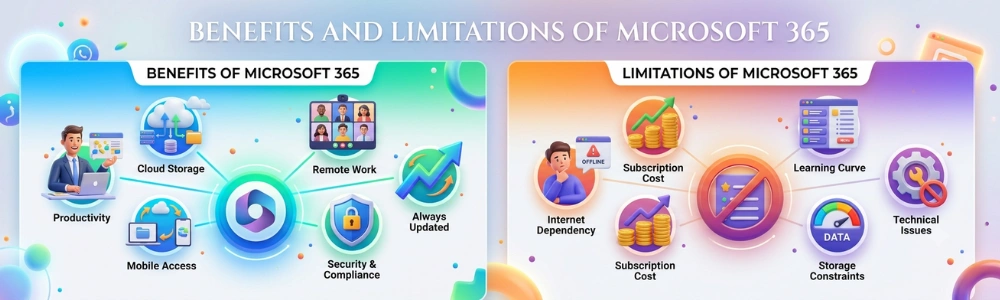
Microsoft 365 combines productivity applications, cloud services, and collaboration tools into a single platform. While it offers significant advantages for many users, it’s also important to understand its limitations before choosing a subscription.
Key Benefits
Microsoft 365 provides several advantages that make it one of the most widely used productivity platforms worldwide.
- Access the latest versions of Microsoft Office applications through a single subscription.
- Work seamlessly across desktop, web, and mobile devices.
- Collaborate in real time using integrated cloud services.
- Store, back up, and share files securely with OneDrive.
- Benefit from regular feature updates, security improvements, and AI-powered capabilities.
Potential Limitations
Like any software platform, Microsoft 365 may not suit every user or organisation.
- Most plans require an ongoing subscription rather than a one-time purchase.
- Some advanced AI and business features are only available with selected licences.
- Many collaboration features work best with a reliable internet connection.
- Organisations may need time to train users and manage the transition from older productivity tools.
Final Considerations
For most individuals, students, professionals, and businesses, Microsoft 365 offers a flexible and continuously evolving productivity solution. However, the right choice ultimately depends on your budget, preferred way of working, and whether you need cloud-based collaboration, AI-powered tools, and ongoing software updates.
Security and Compliance Features
Beyond productivity and collaboration, security is another key consideration when choosing a modern productivity platform. Microsoft 365 includes built-in security and compliance features that help protect user accounts, sensitive data, and organisational information. While the available capabilities vary by subscription, every plan provides multiple layers of protection for individuals and businesses.
| Feature | Purpose |
|---|---|
| Multi-factor authentication (MFA) | Adds an extra layer of security during sign-in. |
| Data encryption | Helps protect data both in transit and at rest. |
| Microsoft Defender integration | Provides advanced threat protection on supported plans. |
| Compliance tools | Help organisations meet regulatory and industry requirements. |
| Identity and access management | Enables administrators to control user permissions and access. |
Microsoft regularly updates its security technologies to address emerging cyber threats and strengthen data protection. For organisations, higher-tier Business and Enterprise plans also include advanced compliance, auditing, and administrative capabilities to support governance and regulatory requirements.
Note: The availability of security and compliance features depends on your Microsoft 365 subscription and licensing.
Common Myths About Microsoft 365
Despite its popularity, several misconceptions about Microsoft 365 continue to cause confusion. The table below clarifies some of the most common myths and explains the reality behind them.
| Myth | Reality |
|---|---|
| Microsoft 365 is the same as Office 365. | Office 365 was rebranded as Microsoft 365 for consumer plans in 2020, reflecting a broader platform that includes cloud services, security, AI, and collaboration tools. |
| Microsoft 365 only works with an internet connection. | Many applications can be used offline. An internet connection is mainly required for cloud synchronisation, collaboration, and accessing online services. |
| Microsoft 365 is only for businesses. | Microsoft 365 offers Personal, Family, Education, Business, and Enterprise plans to suit different users and organisations. |
| You need to buy a new version every few years. | Subscribers receive ongoing feature updates and security improvements throughout their subscription. |
| All Microsoft 365 plans include the same features. | Available applications, AI capabilities, security tools, and administrative features vary depending on the subscription plan. |
In Summary: Understanding how Microsoft 365 works—and choosing the right subscription—helps avoid many of the common misconceptions surrounding the platform.
Tips for Getting Started with Microsoft 365
If you’re new to Microsoft 365, taking a few simple steps can help you get the most from your subscription and avoid common setup issues.
- Choose the right plan based on whether you need Microsoft 365 for personal, educational, or business use.
- Install the desktop and mobile apps to access your files and work across multiple devices.
- Set up OneDrive to back up important documents and keep files synchronised automatically.
- Enable multi-factor authentication (MFA) to add an extra layer of account security.
- Explore Microsoft Copilot, if available with your subscription, to streamline writing, data analysis, and everyday tasks.
- Keep your apps updated to benefit from the latest features, security improvements, and performance enhancements.
These steps provide a solid foundation for using Microsoft 365 securely and efficiently from day one.
Final Thoughts
Microsoft 365 has evolved far beyond the traditional Microsoft Office suite. Today, it combines familiar productivity applications with cloud services, collaboration tools, built-in security, and AI-powered capabilities to support the way people work, learn, and communicate.
Whether you’re an individual managing personal projects, a student completing coursework, or a business supporting hybrid teams, Microsoft 365 offers flexible subscription options to suit a wide range of needs. Understanding its applications, features, plans, and comparisons with alternatives such as Office 2024 and Google Workspace makes it easier to choose the solution that best aligns with your requirements.
As Microsoft continues to invest in artificial intelligence, cloud computing, and workplace collaboration, Microsoft 365 is expected to become even more intelligent, connected, and adaptable—helping individuals and organisations stay productive in an increasingly digital world.
Frequently Asked Questions (FAQ)
Is Microsoft 365 the same as Microsoft Office?
No. Microsoft Office traditionally referred to a one-time purchase of desktop productivity applications, whereas Microsoft 365 is a subscription-based service that includes Office apps alongside cloud storage, collaboration tools, regular updates, advanced security, and AI-powered capabilities.
What is Microsoft 365 used for?
Microsoft 365 is used to create documents, analyse data, manage email, collaborate with teams, store files securely in the cloud, and communicate across multiple devices. It supports personal productivity, education, business operations, and remote or hybrid working through integrated applications and cloud services.
Can I use Microsoft 365 without an internet connection?
Yes. Most Microsoft 365 desktop applications, including Word, Excel, and PowerPoint, can be used offline. However, an internet connection is required for cloud synchronisation, real-time collaboration, software updates, and certain online features.
Can I use Microsoft 365 on multiple devices?
Yes. Depending on your subscription, Microsoft 365 can be installed on multiple supported Windows PCs, Macs, tablets, and smartphones. Files stored in OneDrive remain synchronised, allowing you to switch between devices and continue working from where you left off.
Which Microsoft 365 plan is best for home users?
For most individuals, the Personal plan provides access to essential Microsoft 365 applications, OneDrive cloud storage, and regular feature updates. Households that want to share benefits across multiple users may find the Family plan a more suitable option.
Is Microsoft 365 suitable for small businesses?
Yes. Microsoft 365 Business plans include professional email, collaboration tools, cloud storage, user management, and enhanced security features that help small and growing businesses improve productivity and support hybrid working.
Does Microsoft 365 automatically update?
Yes. Microsoft 365 subscribers receive continuous feature updates, security patches, and performance improvements throughout their subscription. This means you always have access to the latest supported applications and capabilities without purchasing a new version.
Does Microsoft 365 include Microsoft Copilot?
Some Microsoft 365 subscriptions include Microsoft Copilot features, while others require an eligible plan or an additional licence. The available AI capabilities vary depending on your subscription and Microsoft’s ongoing feature rollout.

Robert Lawrence
Author | Specialises in e-learning.
Robert Lawrence is an e-learning specialist and author at Training Express, with over 5 years of experience creating practical resources and strategies to support learners and enhance their professional & personal development.
Related Blogs